¶ Configuring the Electrodes of the Anthriq Instinct Headset
Proper electrode configuration is essential for ensuring high-quality data collection with the Anthriq Instinct EEG headset. The process is designed to guide you through optimal electrode adjustment for accurate and comfortable fitting. This article provides a comprehensive walkthrough of configuring the electrodes on your Nexstem Instinct headset.
¶ Initial Setup
¶ Starting the Configuration Process
If your headset is connected to a visual monitor, open the BXI Studio application on the monitor and log in to proceed.
¶ Onboarding and Electrode Configuration
¶ Placing the Headset
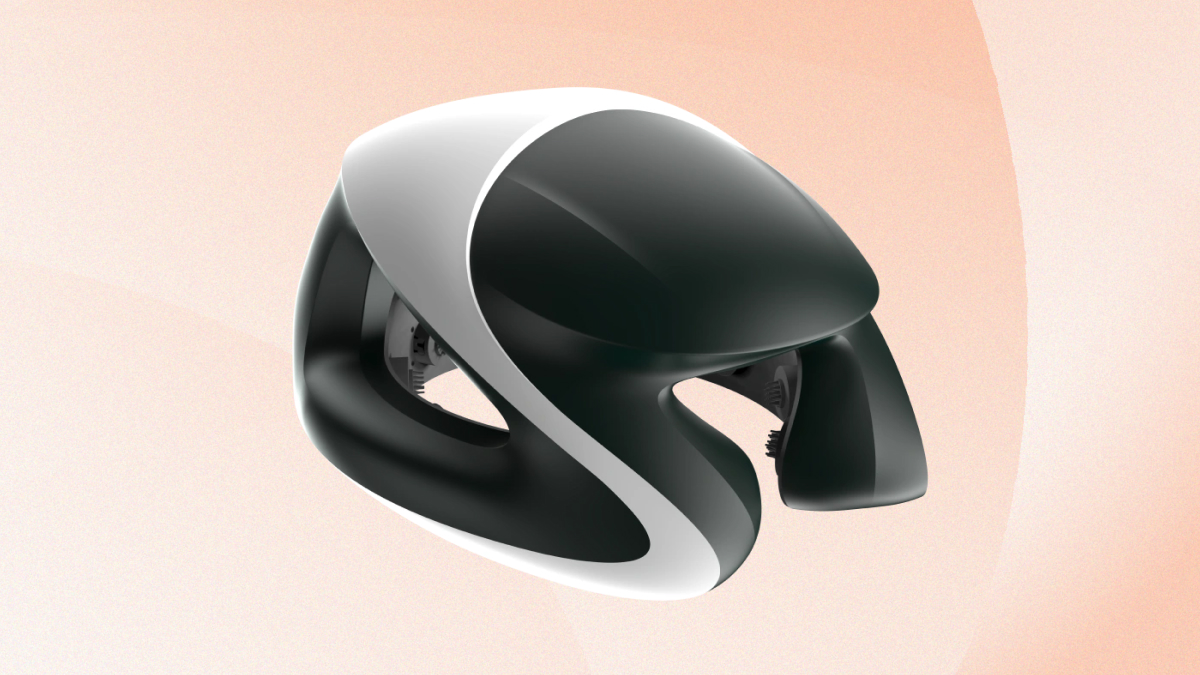
- Position the Headset: Place your Anthriq Instinct headset on a firm and level surface and proceed to the next step in the app or on your screen.
¶ Selecting the Correct Size
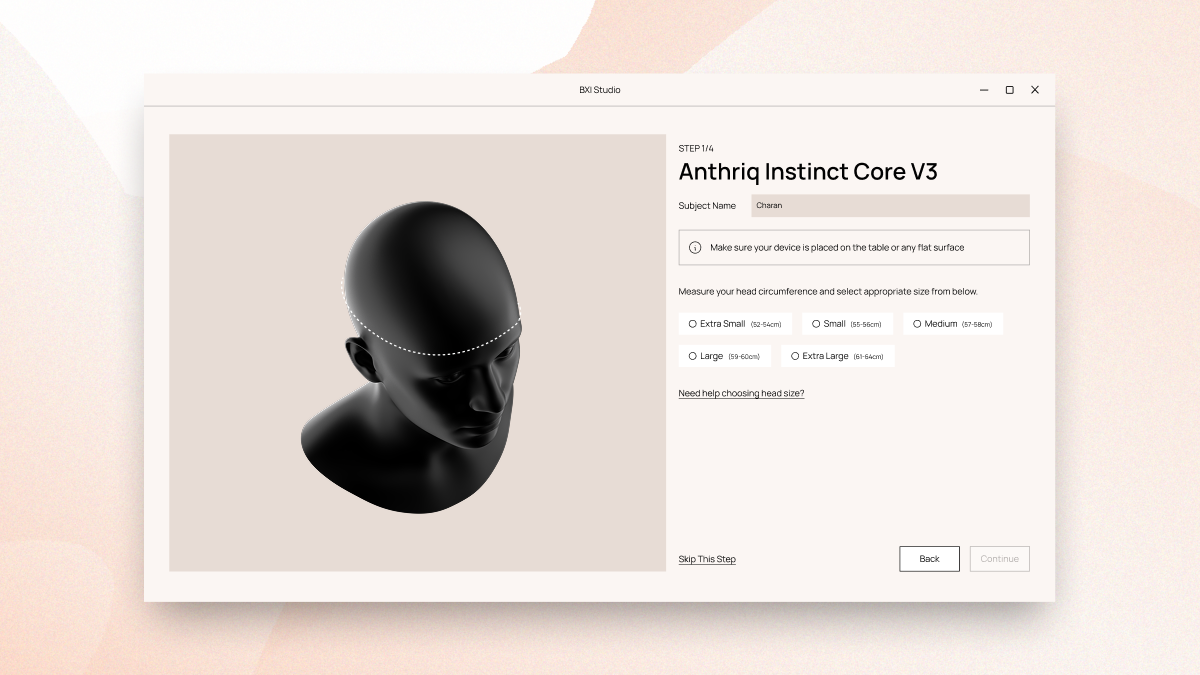
- Size Selection: You will be prompted to select the size closest to your head. If unsure, choose the size that you believe is the closest match.
- Automatic Adjustment: Upon size selection, the headset will automatically move the electrodes to a preset position tailored to the chosen size. Wait for this adjustment process to complete as indicated on the screen.
¶ Properly Wearing the Headset
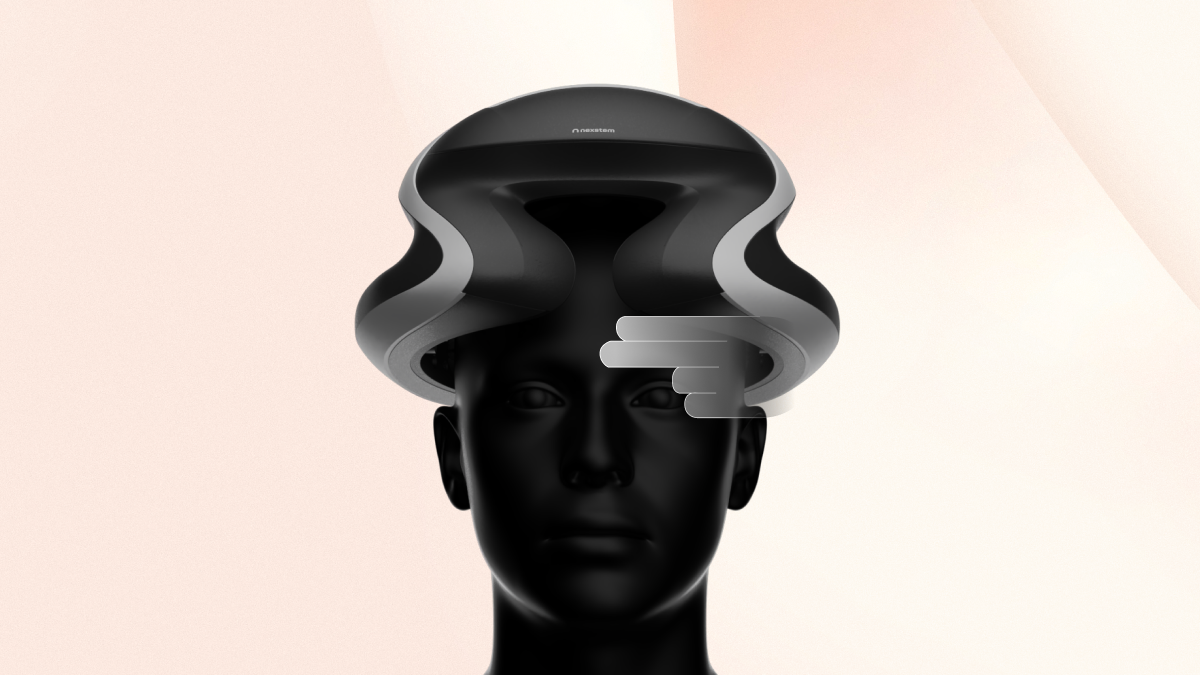
- Wearing the Headset: To wear the headset properly, pick it up by holding both sides. Ensure the title mark aligns with the center of your ear for correct positioning.

- Height Adjustment: Adjust the height of the headset by following the on-screen instructions. Use the up and down buttons to move the electrodes. Ensure there is a two-finger gap between the bend on your forehead and the headset, aligning with the standard 10-20 system positioning.
¶ Fine-Tuning Electrode Contact
-
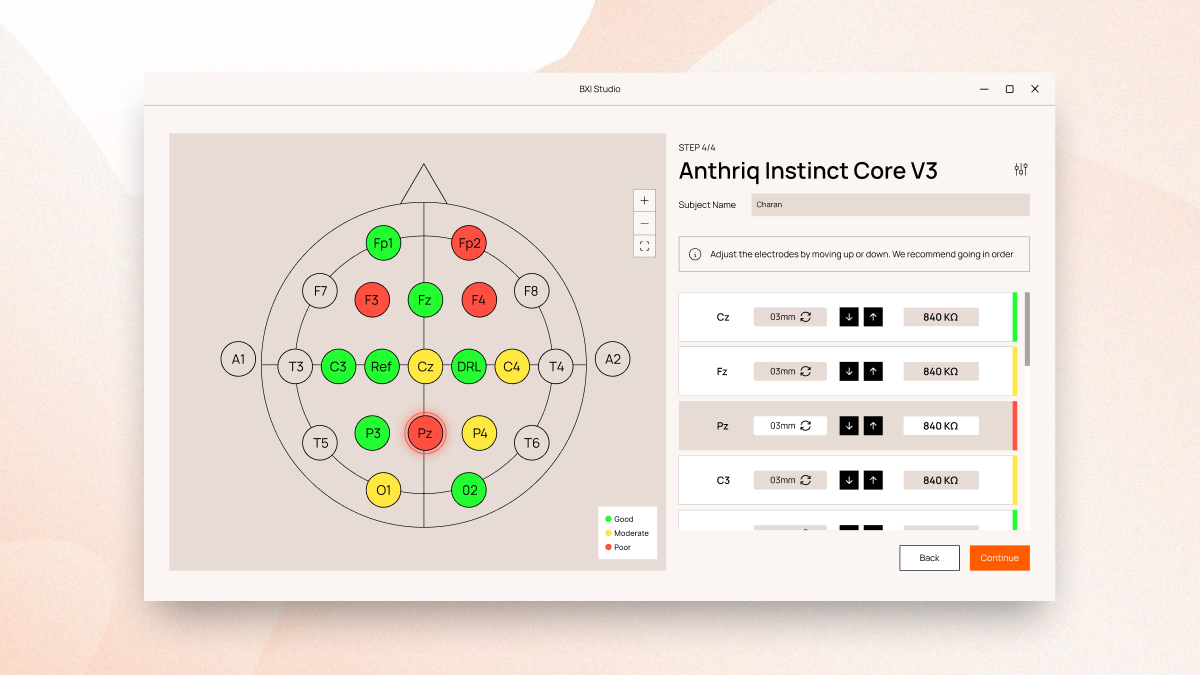
Initial Contact Quality Check: After basic adjustments, a screen will show the initial electrode contact quality. You’ll then proceed to configure four additional electrodes for enhanced stability.
-
Adjusting Individual Electrodes: For each electrode, adjust the motor to move the electrode closer or away from your head. Ensure that the contact quality is good (indicated by on-screen cues such as 'Good', 'Moderate', or 'Bad'). If the electrode feels too tight, adjust it upward slightly; if the contact remains good without discomfort, it is properly positioned.
-
Complete the Configuration: Continue this process for the next four electrodes until all are correctly adjusted.
¶ Final Steps
¶ Verifying Overall Setup
- Completion Confirmation: Once all electrodes are adjusted, you can proceed to the next steps of linking it to a subject.
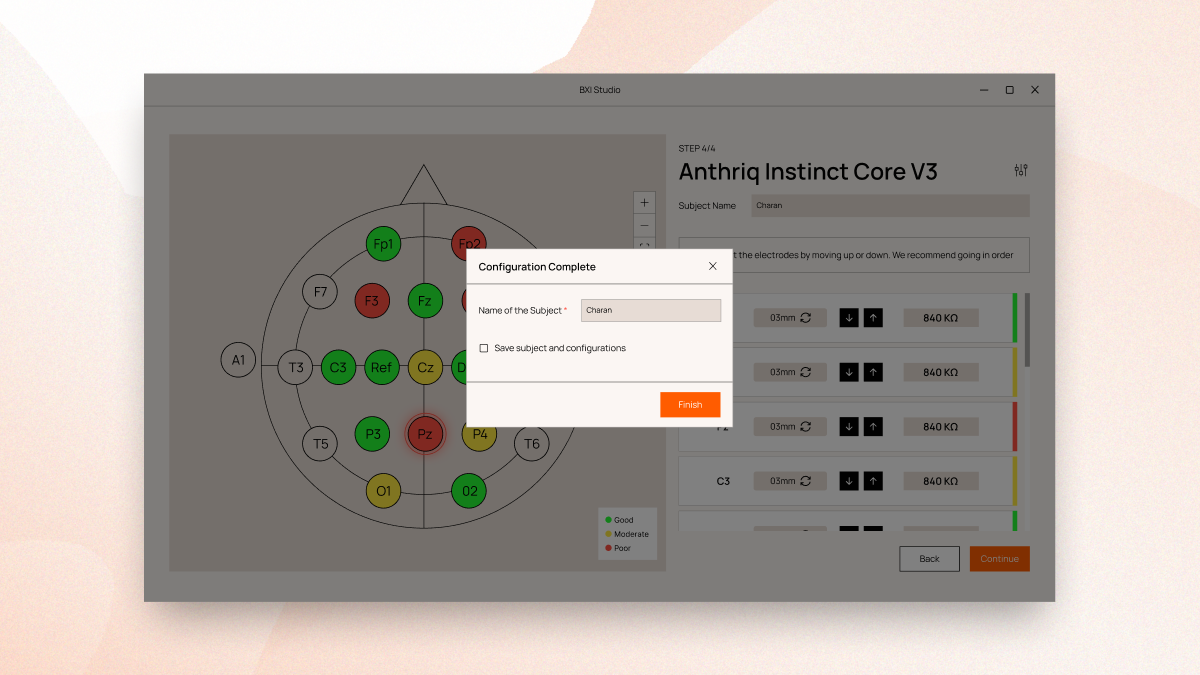
By following these detailed steps, you can ensure that your Anthriq Instinct headset is perfectly adjusted to your head, maximizing both comfort and the quality of the data collected. Proper initial setup and regular checks of electrode contact quality are crucial for reliable EEG recording and analysis, making this process a fundamental aspect of successful EEG studies and applications.
¶ Saving Subject Configurations
In BXI Studio, saving a subject configuration stores all device connections, channel mappings, and electrode positions linked to that subject. When a subject reconnects or participates in future sessions, the software automatically restores the same setup — ensuring consistent signal quality and faster experiment preparation. This eliminates the need to reconfigure devices each time, maintaining uniformity across sessions and improving experimental reproducibility.
Saving a subject configuration is optional. You can simply enter a subject’s name and proceed without saving configurations to create a temporary local session for that subject.
¶ Monitoring Electrode Contact Quality
- Electrode Manager Screen: In the BXI Studio App, navigate to the Devices menu. You can select a connected device to view the contact quality of a particular device.
- Final Adjustments: Select any electrodes showing 'Moderate' or 'Poor' contact quality. Adjust these electrodes to improve fit and ensure optimal contact quality, enhancing the overall signal quality of the data.